
MSGtoEML conversion is helpful when Outlook message files need to be opened, archived, migrated, or reused in email clients that support the EML format. MSG files are typically created by Microsoft Outlook and contain a single email message, including the message text, subject, sender, recipients, date, and formatting. EML files are more widely usable across different email programs, which makes them practical for long-term storage and cross-client email migration.
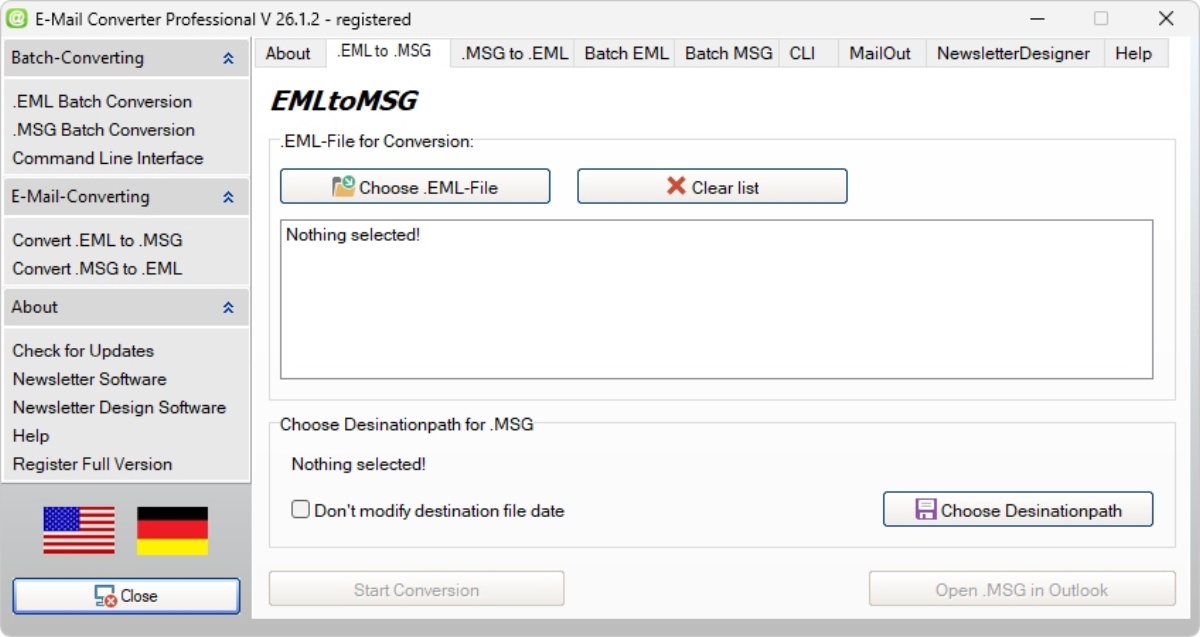
E-Mail Converter Professional allows users to convert Outlook MSG files into EML format without manually opening and saving every message. This is useful when older Outlook archives must be prepared for a new computer, a Windows upgrade, or another email application. MSGtoEML workflows can reduce manual effort, protect important email data, and make archived communication easier to access after a system change.
Overview of the MSG to EML Conversion Process
The MSG to EML conversion process transforms Outlook message files into standard EML files. During conversion, the software reads the original MSG file and exports the email into a format that can be opened by many compatible mail clients. For beginners, the main benefit is simple: emails are no longer tied only to Outlook and can be reused in a more flexible file format.
A reliable conversion process should preserve the essential parts of an email, including:
- message body and visible email text
- subject line, sender, and recipients
- date and time information
- basic formatting, signatures, and reply structures
- folder context when complete directories are converted
This makes MSG to EML conversion valuable for email backup, Outlook archive conversion, Windows 11 migration, and moving email data between different mail clients. Instead of only changing the file extension, the process should keep the message readable, organized, and usable for future reference.
Converting Methods for Flexible Email Migration
Different migration projects require different conversion methods. Some users only need to convert one file, while others must process hundreds or thousands of saved Outlook messages from backup folders, project directories, or older mailbox exports. Flexible converting methods help users choose the right workflow for the amount of data and the level of automation required.
Single Convert for Individual MSG Files
Single convert is useful when only a few individual MSG files need to be changed into EML format. This method is ideal for selected emails, test conversions, or important messages such as invoices, legal communication, support cases, customer conversations, and project documentation.
For smaller tasks, single-file conversion keeps the process controlled and easy to verify. Users can convert one Outlook message file, check the resulting EML file, and then decide whether the same settings are suitable for more messages. This approach is beginner-friendly because it avoids complex workflows and makes the result immediately understandable.
Batch Convert for Multiple Email Files
Batch convert is designed for larger email collections. Instead of converting every MSG file one by one, users can process multiple email files in one operation. This is especially useful for business users, administrators, support teams, and anyone who needs to prepare complete email archives for migration, backup, or long-term storage.
Batch conversion is particularly valuable in scenarios such as:
- exporting old Outlook project folders into EML format
- preparing customer communication for archive storage
- converting large collections of saved MSG files before a Windows 11 transition
- standardizing email files from multiple users or departments
- reducing repetitive manual work during archive cleanup
A batch workflow saves time and helps keep the output consistent across the complete archive. When many messages are involved, this can make the difference between a manageable migration and a time-consuming manual task.
Command-Line-Interface (CLI) for Automated Conversion Tasks
A Command-Line-Interface, often shortened to CLI, is useful for advanced users who want to automate conversion tasks. Instead of using only the graphical interface, conversion jobs can be started through scripts, scheduled tasks, or administrative workflows. This is especially helpful in professional IT environments where repeatable processes and standardized results matter.
CLI conversion can support recurring archive jobs, server-side workflows, or structured migration routines. For example, an administrator can prepare a script that converts selected folders without manually clicking through each step. This makes the conversion process more scalable and easier to integrate into existing backup, migration, or document-management procedures.
MSG to EML Converter for Windows 10 to Windows 11 Email Migration
A MSG to EML converter can be very useful during a Windows 10 to Windows 11 email migration. Many users upgrade their operating system, replace an old computer, or reorganize email data during the transition. If important messages are stored as Outlook MSG files, converting them to EML format can make the archive easier to move, open, and preserve.
Windows upgrades are also a good moment to clean up old email storage. A MSG to EML converter helps prepare Outlook message files so they can be transferred to the new system or imported into another compatible email client. This is useful for private users, freelancers, companies, and IT teams that need a structured way to keep old emails accessible after the migration.
Preparing Old Outlook Archives for a Windows 11 Transition
Before moving to Windows 11, it is smart to review old Outlook archives and decide which messages should remain available. Many users find MSG files in backup folders, project directories, exported mail folders, or old user profiles. Converting these files before the transition can prevent access problems later, especially if Outlook is no longer installed or another email client will be used.
A practical preparation workflow can look like this:
- Create a backup of the original MSG files before starting the conversion.
- Sort source files into clear folders, such as by customer, year, project, or department.
- Run a small test conversion with selected messages.
- Check whether the resulting EML files preserve text, sender, recipients, subject, date, and formatting.
- Convert the complete archive once the sample result has been verified.
This structured approach reduces the risk of data loss and makes the converted email archive easier to search, store, and transfer after the Windows 11 migration.
Moving Email Data Between Outlook and Other Email Clients
MSG files are closely connected to Microsoft Outlook, while EML is supported by many other email applications. This makes conversion important when email data needs to move between Outlook and alternative clients. Users may want to open old emails in another program, store messages in a more portable format, or prepare data for long-term archiving.
The goal is not only to create an EML file, but to keep the email complete and readable. A good conversion should preserve message content, header information, dates, sender and recipient details, subjects, and formatting as accurately as possible. This is especially relevant for business communication, documentation, support histories, and compliance-related archives.
Outlook Archive Conversion and Folder Structure Support
Outlook archive conversion becomes more demanding when users need to process full folders instead of isolated files. Large archives may contain many subfolders, customer conversations, project emails, attachments, and historical records. Folder structure support helps keep this information organized after conversion, so users do not have to rebuild the archive manually.
Convert Complete Folders and Directory Structures
Converting complete folders is useful when MSG files are stored in structured directories. Emails may be sorted by year, department, customer, or project. If the converter keeps the directory structure intact, the exported EML files remain easier to find and manage after conversion.
This is a major advantage for larger archives because the original context of the messages is preserved. Instead of receiving one flat folder with hundreds or thousands of exported files, users can continue working with a familiar structure. This improves post-migration review, backup organization, and documentation.
Preserve Message Text, Subject, Sender, Recipients, Date and Formatting
Preserving email content is one of the most important parts of any MSG to EML conversion. The converted files should not only contain the visible message text, but also the essential metadata that explains who sent the message, who received it, when it was sent, and what the subject was.
Formatting also matters. Business emails often include styled text, line breaks, tables, signatures, quoted replies, and structured information. If these elements are preserved, the converted archive remains easier to read and more useful for later reference. This is important for customer communication, internal documentation, legal records, and technical support histories.
Managing email archives often requires moving between different file types. If you need to export Outlook messages, you can easily convert MSGtoEML to ensure your files are readable across multiple platforms. For managing larger volumes of data, using a reliable MSG to EML converter helps automate the process efficiently. Alternatively, you can use a professional software solution to convert emails to EML format locally on your PC without uploading sensitive data.
Support for Microsoft Outlook Versions from 2000 to 2024
Many email archives are created over several years, sometimes across different Outlook versions. Compatibility with older and newer Outlook MSG files can therefore be important. A converter that supports Outlook versions from 2000 to 2024, depending on product version and file type, helps users work with both legacy archives and recent message exports.
This broad compatibility is useful when companies modernize their IT systems, consolidate old backups, or prepare archived communication for Windows 11. It also helps private users who have collected Outlook messages over many years and now need a practical way to keep those emails accessible in a standard format.